
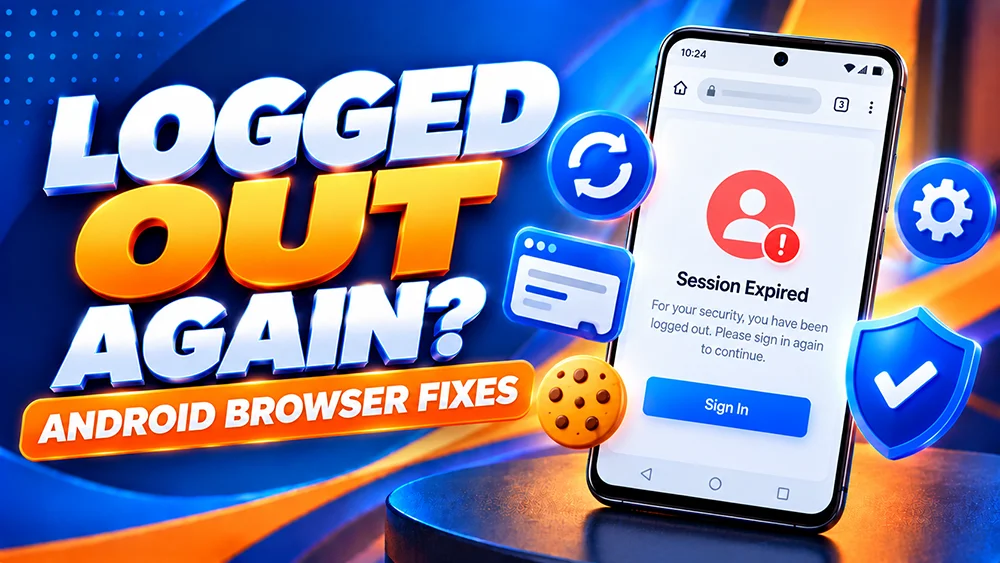
Signed in to OKGames, opened another page, and suddenly found yourself back at the Login screen? Being logged out after a successful sign-in is different from entering the wrong password. Before resetting your account, check the Android browser session.
These steps concern the mobile website, not a confirmed outage.
Why Does the OKGames Website Keep Logging Me Out?
Browser cookies and session information can keep you signed in. A session may end when it expires or stored information is deleted.
A timeout after inactivity can be normal. Returning to Login immediately after signing in is worth investigating, but does not automatically mean a locked account.
Five Checks to Try on Android
1. Open the Website in a Regular Browser Tab
Open our OKGames Login page directly in Chrome or another current browser. If you used a browser inside a chat app, try the regular browser.
Avoid a private or Incognito tab while testing whether your sign-in stays active. Private sessions are designed to keep less browsing information after they end.
2. Check Whether Browser Data Is Being Cleared
If you regularly delete cookies or use an automatic cleaning feature, your website sign-ins may disappear too. On Chrome for Android, cookie and site-data controls are available through Settings → Privacy and security; the exact menu can vary by version.
Do not erase all browsing data as your first step. That can sign you out of other websites and remove saved preferences.
3. Try a Single Fresh Tab
Close duplicate OKGames tabs, open one new regular tab, and sign in again. Avoid repeatedly submitting the form across several windows while checking the problem.
If the page asks for another verification code, follow the latest on-screen instructions. Never reuse a code that has expired.
4. Test a Stable Connection
If the page repeatedly reloads or fails to finish loading, test another ordinary website. Switch from Wi-Fi to mobile data, or the other way around, if practical.
A connection problem can interrupt navigation, but it does not prove that connectivity caused the sign-out.
5. Update Your Browser
Check whether Chrome or your preferred Android browser has an update available. Close unnecessary tabs and reopen the browser after updating. You can compare the behaviour in another trusted browser without installing an unofficial APK.
What If You See “Session Expired”?
Read the exact message before taking action. If it appears after you have been inactive, return to the Login page and complete any required verification. A session timeout is not the same as a lost account.
If you are sent back to Login immediately on every attempt, note the page address, browser name, Android version, approximate time in Philippine Time (PHT), and whether it happens on Wi-Fi and mobile data.
For problems where the password itself is rejected, use our existing login troubleshooting guide instead.
Should You Clear Cookies to Fix a Login Loop?
Only consider it after the simpler checks. Clearing cookies for a website can remove stored sign-in information and preferences, so have your correct login details ready first.
In Chrome, you can open the website, tap the icon beside the address bar, and review Cookies and site data if available. Menu names vary. Do not weaken security settings to stay signed in.
If a login loop persists, use the support link from our website and describe the steps already tested. For unusual sign-ins or repeated security prompts, read our login verification guide.
Quick FAQ
Does being logged out mean my OKGames account was deleted?
No. A signed-out browser session alone does not show that an account was deleted. Try the normal login process and check the message displayed.
Will clearing cookies delete my balance?
Cookies affect local website data, not usually an online balance. Clearing them may sign you out; it is not a payment fix.
Should I turn off Android security settings to stay signed in?
No. Do not disable browser protection or share your password or one-time code to solve a session problem.
Next step: Test a regular browser tab and check whether your session survives normal navigation. If the same issue happens repeatedly, report the exact behaviour instead of changing unrelated account settings.