
Want to open OKGames with one tap, but don’t want to install an APK? You can put a shortcut to our website on your Android Home Screen. It works like a bookmark with its own icon: tap it to open the site in your browser. No Android installation file is needed.
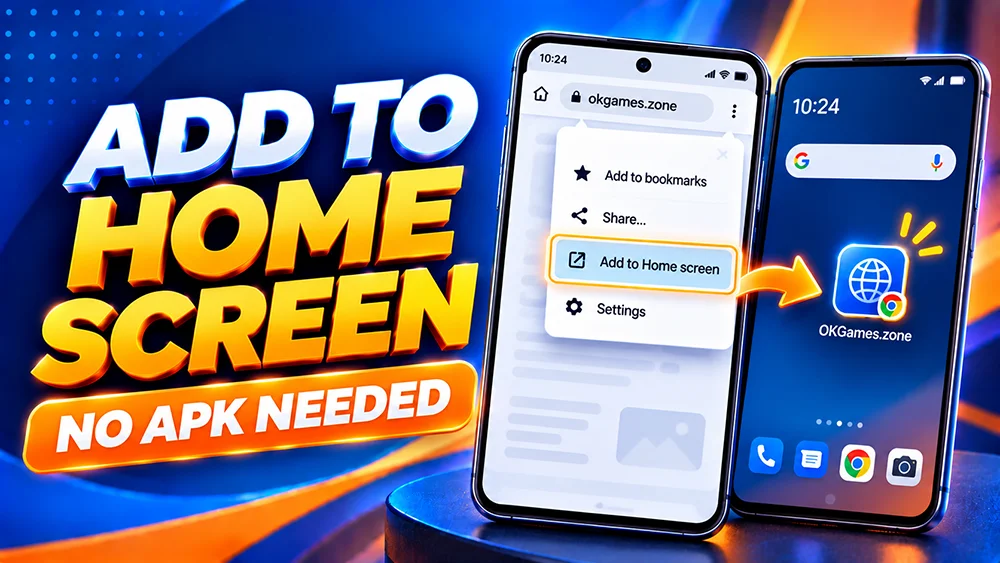
How to Add OKGames to Your Android Home Screen
These steps follow Chrome’s current Android shortcut options. Menu wording can vary by phone and browser version.
- Open Chrome, not a link preview inside Facebook, Messenger, or another app.
- Type http://okgames.tw/ into the address bar and check the address before continuing.
- Tap Chrome’s three-dot menu (⋮) beside the address bar.
- Look for Install and create shortcut, then select Create shortcut. Some versions show Add to Home screen instead.
- Rename the shortcut if you wish, tap Add, and check your Home Screen for the new icon.
Tap the icon to open the website. This creates a website shortcut; it does not download an OKGames APK.
Can’t Find “Add to Home Screen”?
Don’t install a random APK just because the shortcut menu is missing. Instead, check the simple causes:
- You’re inside an in-app browser. Open the page in Chrome directly and try again.
- Chrome uses a different label. The menu may say Install and create shortcut, Create shortcut, or Add to Home screen.
- You already have a shortcut. Look through your Home Screen pages and folders before creating another.
- Chrome needs an update. Update it through your usual app store and reopen the site.
If you see Install app rather than Create shortcut, read the prompt carefully. Chrome may be offering a web app instead of a simple shortcut. The available behaviour depends on the website and browser; do not assume it is the same as the downloadable Android APK.
Website Shortcut vs Android APK: What’s Different?
A Home Screen shortcut takes you to a web address. It is quick to create and does not require an APK file. You still need a working connection for pages and online features that require one.
An Android APK installs a separate package on a compatible Android device.
If you specifically want installation information, use our OKGames App page. This guide covers the browser shortcut only, so it does not replace our existing download instructions.
Will the Shortcut Keep Me Logged In?
Not necessarily. A shortcut does not create a new account, change your password, or bypass verification. Your sign-in experience still depends on the website and the browser’s session settings.
If you are sent to Login every time you open it, check our Android browser login-session guide rather than repeatedly changing your password. Never share a password or OTP to activate a Home Screen icon.
How to Remove the Shortcut
Touch and hold the Home Screen icon, then choose Remove or drag it to the removal area, depending on your Android launcher.
Removing a website shortcut does not delete your OKGames account, uninstall a separate Android app, or erase the website itself. If you also installed an APK, manage that app separately under Android Settings.
Quick FAQ
Is an Android Home Screen shortcut the same as an APK?
No. A shortcut opens a website. An APK installs an Android application package.
Can I use the shortcut on an iPhone?
iPhone users can create a similar website shortcut through Safari, but the steps differ. See our OKGames iPhone browser guide.
Does the shortcut work without internet?
Don’t assume so. Online account pages, game information, and other connected features usually require access to the website.
Why does my shortcut open Chrome?
That is expected for a standard Chrome-created website shortcut. It opens the web page, not a separately installed APK.
The takeaway: If you want fast access to our mobile website, create a Chrome Home Screen shortcut. Choose the verified app page only when you specifically need Android installation guidance.