
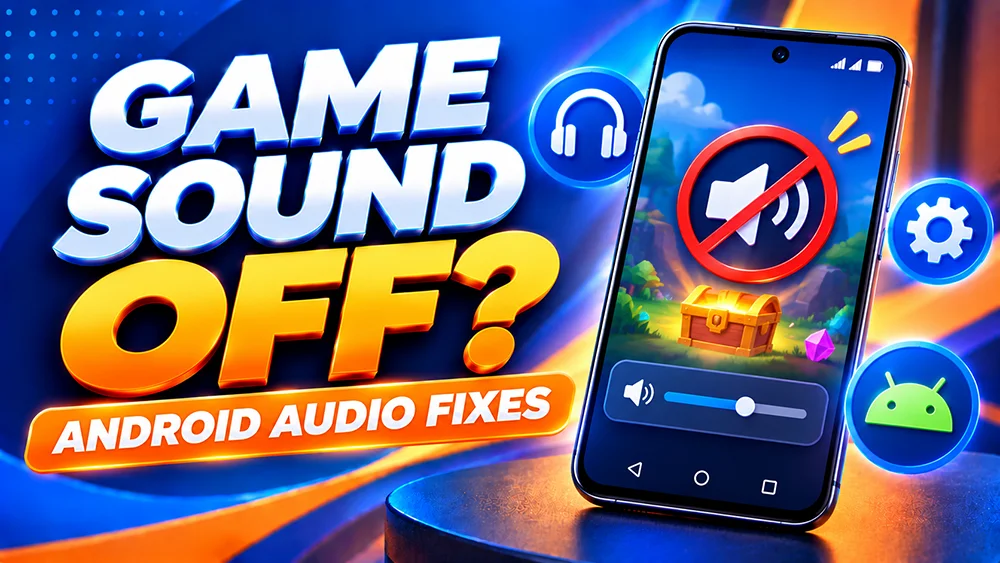
Opened a game and the screen looks normal, but you cannot hear anything? Before reinstalling an APK or clearing browser data, check where your phone is sending its audio. A muted game, a Bluetooth connection, or a browser setting can make a working game seem silent.
These are general Android checks, not a confirmed OKGames audio outage. Sound controls can differ by game.
First, Check Whether the Game Has Sound Enabled
Some games offer a speaker, music, or sound-effects icon inside their settings or pause menu. If your game shows one, check whether music or effects have been muted. Not every title offers a separate switch, and some game screens are silent by design.
Try an ordinary video or audio clip on your phone. If that is also silent, start with Android’s audio settings instead of changing anything in the game.
Five Android Sound Checks Worth Trying
1. Raise Media Volume, Not Just Ringtone Volume
Press a volume button while media is playing. Open the expanded volume panel if needed, then check Media volume. Android separates media audio from calls, alarms and ringtones, so a loud ringtone does not mean game audio is turned up.
2. Check Bluetooth Earbuds and Other Audio Outputs
Your phone may still be connected to headphones, a speaker or a car stereo. Disconnect an unused Bluetooth device or choose the phone speaker as the media output, then test again. For wired earphones, check the connection.
3. Allow Website Sound in Chrome
If you opened a game in Chrome for Android, go to Chrome → Settings → Site settings → Sound and check whether websites are allowed to play audio. Also look for an exception that might mute the site. Menu names can vary by Chrome version.
This browser control is different from Android’s microphone permission. You do not need to give a game microphone access just to hear its sound.
4. Return to the Game and Use Its Audio Control
After checking volume and Chrome settings, return to the game and tap its normal Play or Sound control if available. Some browsers do not start certain audio until you interact with the page. Avoid repeatedly submitting a game action while a round is still processing.
5. Restart the Browser or Phone
If the problem continues, close the affected browser tab only when you have no unresolved round or transaction. Reopen the game from our OKGames Games Hub. You can also restart your phone before trying anything more disruptive.
Only One Game Is Silent?
Check a second game without placing a paid bet. If one title is silent while the rest produce sound, it may have different audio controls or a title-specific issue. Do not assume an entire website is down.
If a game also freezes, goes black or never finishes loading, follow our games-not-loading troubleshooting guide instead. That is a different issue from missing audio.
What If the Installed App Has No Sound?
Check media volume and Bluetooth output first. Then look for a sound option within the game, if one is shown. Avoid clearing app storage or uninstalling as a first response: that can remove local settings and sign-in information.
If the whole app crashes or fails to launch after an update, use our Android app-startup guide rather than treating it as an audio-only problem.
Quick FAQ
Why is my phone loud but a game still silent?
Your ringtone and media volume can be different. Check Media volume, Bluetooth output, and any game-specific sound switch.
Does Chrome need microphone permission for game sound?
No. Microphone access is for capturing audio, not ordinary sound playback. Review browser sound settings instead.
Will clearing my browser data fix the sound?
It is not the first step. Clearing site data may sign you out and erase local preferences. Check audio controls and output settings before trying anything that removes data.
The takeaway: Start with media volume, Bluetooth and the game’s own sound switch. If a paid round is unresolved, confirm its status before closing or refreshing anything. Play responsibly and follow applicable age and location rules.